


In this guide
Explore the steps and reference sections below.
On this page
Currency Switcher allows your WooCommerce store to display prices in multiple currencies, giving international customers a familiar shopping experience. Prices are automatically converted based on exchange rates, and visitors can switch between currencies using a customizable widget.
Getting Started
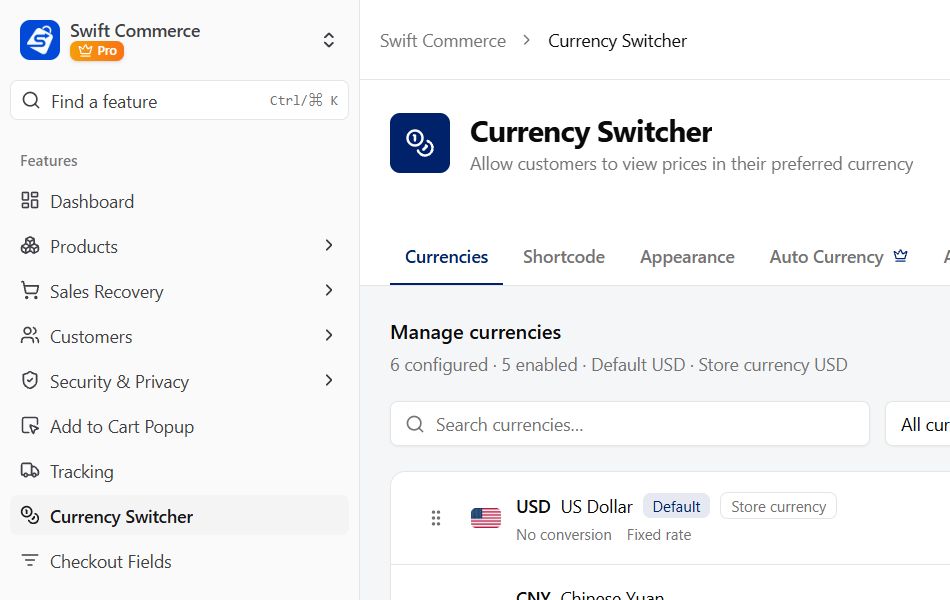
- Navigate to Swift Commerce → Currency Switcher in your WordPress admin
- Enable the feature using the toggle
- Add the currencies you want to support
- Configure manual rates, or fetch rates on demand with ExchangeRate-API and save the reviewed result
- Place the switcher using its shortcode (Free) or Elementor widget (Pro)
Currencies Tab
Managing Currencies
Your WooCommerce base currency is automatically added and marked as the default. From here you can add additional currencies for your international customers.
| Action | Description |
|---|---|
| Add Currency | Choose from the supported WooCommerce currency catalogue |
| Enable/Disable | Toggle individual currencies on or off |
| Reorder | Drag and drop to change display order |
| Set Default | Choose which currency is shown by default |
Edition availability: The current Free plugin is not limited to one additional currency. Both editions use configured currencies from the supported catalogue. Pro adds fixed product prices, sale schedules and expanded controls; do not treat Pro as an unlimited-storage promise.
Supported Currencies
The selector includes more than 100 currency choices. The following are examples; the available codes follow the current currency catalogue:
| Currency | Code | Symbol |
|---|---|---|
| US Dollar | USD | $ |
| Euro | EUR | € |
| British Pound | GBP | £ |
| Japanese Yen | JPY | ¥ |
| Australian Dollar | AUD | A$ |
| Canadian Dollar | CAD | C$ |
| Swiss Franc | CHF | CHF |
| Chinese Yuan | CNY | ¥ |
| Indian Rupee | INR | ₹ |
| Mexican Peso | MXN | MX$ |
| Brazilian Real | BRL | R$ |
| South Korean Won | KRW | ₩ |
| And many more… |
Currency Configuration
Each currency has configurable settings:
Exchange Rate Settings:
| Setting | Description | Options |
|---|---|---|
| Rate Type | How the exchange rate is determined | Fixed / Auto (API) |
| Rate | The conversion rate relative to default currency | Numeric value |
Fee Settings:
| Setting | Description | Options |
|---|---|---|
| Fee Type | How to calculate conversion fee | Fixed Amount / Percentage |
| Fee | Amount to add to converted prices | Numeric value |
Price Format Settings:
| Setting | Description | Options |
|---|---|---|
| Decimals | Number of decimal places | 0-4 |
| Symbol Position | Where to display currency symbol | Before amount / After amount / Before with space / After with space |
| Rounding Type | How to round converted prices | None / Round Up / Round Down / Round Nearest |
| Rounding Value | Value to round to | e.g., 0.99, 0.50, 1.00 |
Appearance Tab
Templates
Choose from pre-designed switcher styles:
| Template | Description |
|---|---|
| Default | Clean dropdown with flag and currency code |
| Minimal | Simple text-only dropdown |
| Flags Only | Compact flag buttons |
| Pill Style | Rounded pill-shaped buttons |
| Modern | Contemporary design with shadows |
| Classic | Traditional bordered select |
| Custom | Use available color controls; additional design controls require Pro |
Display Options (Pro – Custom Template)
| Setting | Description | Default |
|---|---|---|
| Show Flags | Display country flags next to currencies | Enabled |
| Show Currency Name | Display the full currency name | Enabled |
| Show Currency Code | Display the code (e.g., “USD”) | Enabled |
| Show Currency Symbol | Display the symbol (e.g., “$”) | Enabled |
Layout Settings (Pro)
| Setting | Description | Options |
|---|---|---|
| Switcher Layout | How currencies are displayed | Dropdown / Button Group / Vertical List |
| Alignment | Horizontal alignment | Left / Center / Right |
Colors & Styling
| Setting | Description | Default |
|---|---|---|
| Background Color | Switcher background | #ffffff |
| Text Color | Text and labels | #1f2937 |
| Border Color | Border around switcher | #e5e7eb |
| Hover Background | Background on hover | #f3f4f6 |
| Hover Text Color | Text color on hover | #111827 |
Flag Settings (Pro)
| Setting | Options |
|---|---|
| Flag Style | Circle / Square / Rounded |
| Flag Size | Small (16px) / Medium (24px) / Large (32px) |
Auto Currency Tab (Pro)
These Pro controls describe the intended location-based workflow. Current limitation: the normal dashboard settings do not fully connect to the legacy detection path. Use manual currency selection until that integration is corrected and tested.
Automatic Currency Detection
| Setting | Description | Default |
|---|---|---|
| Enable Auto Currency | Automatically switch based on visitor location | Disabled |
The controls provide country-to-currency mappings, but their presence alone does not confirm working automatic switching in the current build. Keep a visible manual switcher available.
Country to Currency Mapping
Define which countries should display which currency:
- Click “Select a country to add”
- Choose the country from the dropdown
- Select which currency visitors from that country should see
- Repeat for each country you want to configure
Example Mappings:
| Country | Currency |
|---|---|
| United States | USD |
| United Kingdom | GBP |
| Germany | EUR |
| Japan | JPY |
| Australia | AUD |
Countries not in your mapping list will see the fallback currency.
Fallback Settings
| Setting | Description |
|---|---|
| Fallback Currency | Currency shown when visitor’s country is not mapped |
| Respect User Choice | Don’t auto-switch if visitor manually selected a currency |
| Remember Duration | Days to remember the user’s currency preference |
Detection Method
| Method | Description |
|---|---|
| IP Detection | Uses visitor’s IP address to determine country |
| Browser | Uses browser language settings |
| Both | Tries IP first, falls back to browser |
GeoIP Provider
| Provider | API Key Required |
|---|---|
| IP-API | No (Free) |
| MaxMind GeoIP2 | Yes |
| IP2Location | Yes |
Test Mode
Enable test mode to simulate visitors from different countries:
| Setting | Description |
|---|---|
| Test Mode | Enable location simulation |
| Test Country | Country code to simulate (e.g., “US”, “GB”) |
Advanced Tab
Automatic Exchange Rate Updates (Pro)
Current limitation: scheduled updates need a settings/hook integration fix. Do not rely on the displayed interval to confirm that rates are refreshing. Use manual rates or the on-demand ExchangeRate-API refresh, review the result and save changes. A successful manual fetch does not prove the scheduler is working.
| Setting | Description | Default |
|---|---|---|
| Enable Auto Updates | Automatically fetch and update rates | Disabled |
| Update Interval | How often to update rates | Daily |
Update Interval Options:
- Every Hour
- Once Daily
- Once Weekly
Manual refresh: Select ExchangeRate-API, click Update Rates Now, inspect the returned rates, then click Save Changes. The fetch updates the dashboard draft; do not assume the new rates are saved until you save the settings.
Exchange Rate API (Pro)
| Provider | API Key Required | Free Tier |
|---|---|---|
| ExchangeRate-API | No | Yes |
| Open Exchange Rates | Yes | Yes |
| CurrencyLayer | Yes | Yes |
| Fixer.io | Yes | No |
For providers requiring an API key, enter your key in the “API Key” field.
Cache Settings
| Setting | Description | Default |
|---|---|---|
| Enable Cache | Cache converted prices for performance | Enabled |
| Cache Duration | How long to cache prices (seconds) | 3600 |
Cookie Settings
| Setting | Description | Default |
|---|---|---|
| Cookie Duration | Days to remember user’s currency choice | 30 |
Shortcode Tab
Basic Usage
Display the currency switcher anywhere using:
[swift_commerce_currency_switcher]Elementor Widget (Pro)
For Elementor users, a dedicated currency switcher widget is available:
- Edit any page with Elementor
- Search for “Currency Switcher” in the widget panel
- Drag the widget to your page
- Customize appearance in the widget settings
How Price Conversion Works
- Base Price: Products are stored in your WooCommerce default currency
- Exchange Rate: Applied to convert to target currency
- Fee (Optional): Added as fixed amount or percentage
- Rounding (Optional): Applied based on rounding settings
Example:
- Product price: $100.00 USD
- Exchange rate to EUR: 0.92
- Fee: 2%
- Rounding: Nearest 0.50
Calculation: $100 × 0.92 = €92.00; add 2% to get €93.84, then round to the nearest €0.50 to get €94.00. A rounding increment is not the same as a “price ending in .99” rule.
WooCommerce Integration
Price Conversion
Product and variation price filters cover supported product browsing contexts. Test these storefront areas with your theme and pricing extensions:
- Product pages (single price, variations)
- Shop/category pages
- Cart and checkout
- Final order and email amounts: verify against the saved order; do not assume historical orders are converted
- Mini cart widget
Supported Price Types
| Price Type | Converted |
|---|---|
| Regular Price | ✓ |
| Sale Price | ✓ |
| Variable Product Prices | ✓ |
| Shipping costs | Verify separately with the shipping method; product-price conversion is not proof of shipping conversion |
| Tax amounts | Verify in a real checkout with your tax configuration and payment gateway |
Using the current Currencies list
Use Add currency to choose a supported code, then search and filter configured currencies by status. Expand a row to edit it; drag to reorder currencies or use its actions menu for keyboard-accessible ordering. Each row shows its code, name, enabled state, rate source, and whether it is the default/store currency. Disable currencies you do not want shoppers to select rather than assuming that adding one publishes it immediately.
Per-currency editor
Choose Fixed rate or Auto (API) and review the exchange rate relative to the base currency. A conversion fee may be a fixed amount in the selected currency or a percentage; it is added after conversion and before rounding. Decimal places (0–4), symbol position, decimal and thousands separators, rounding method, and rounding increment control formatting. Rates, fees, and rounding do not apply to the default currency. The sample conversion is illustrative and excludes product-specific overrides.
Advanced limits and safeguards
Pro Auto Currency can detect or map a shopper’s currency, set a fallback, and remember their preference. Pro Advanced controls automatic rate updates, provider and API key, caching, converted-price display, and preference-cookie duration. The Exclusions panel is marked Coming Soon; product and category exclusions are
not currently active. Keep any API key private and verify the rate provider’s terms before enabling automatic updates.
Check storefront and checkout
- Switch currencies on a product, cart, and checkout page. Compare a sample product price with the configured rate, fee, format, and rounding.
- Test a currency with a different decimal separator and a zero-decimal currency.
- Confirm the selected currency persists for the configured duration and that checkout behavior matches your chosen lock or fallback settings.
Product Prices (Pro)
Manage fixed regular/sale prices in enabled secondary currencies. This supports simple products, external products, standard variations and fixed-price Swift Commerce bundles. Subscription plans, subscription variations and calculated bundles keep their existing pricing behavior. A base-currency price is required; variable-parent overrides are not copied to variations.
Set a price in the product editor
- Enable Currency Switcher and save at least one enabled secondary currency.
- Edit the product and open Product data → Currency Prices. For a variable product, open a standard variation under Variations and expand Currency Prices.
- Expand a currency, enter Regular price and an optional Sale price, then optionally choose Sale starts and Sale ends. Dates are inclusive and use the WordPress site timezone.
- Update the product or save its variations. Inspect the product in the selected currency.
| Value | Result |
|---|---|
| Blank regular price | Convert the saved base regular price using the currency’s rate, fee and rounding settings. |
| Fixed regular price, including 0 | Use that currency amount without exchange-rate fees or rounding. Zero is an intentional price. |
| Blank sale price | Inherit an active base WooCommerce sale. With fixed regular pricing, preserve the base sale’s percentage discount. |
| Fixed sale price | Use it while its optional date range is active. It must be lower than the effective regular price. |
| Both prices blank | Remove that currency’s override without changing other currencies. |
Use a decimal point with no symbol or thousands separator, up to six decimal places. Sale dates require an explicit sale amount. Automatic conversion is a read-only preview of saved prices and rates; save base-price edits before reviewing a fresh preview.
Review and apply dashboard price changes
- Go to Swift Commerce → Currency Switcher → Product Prices and choose an enabled secondary currency.
- Search by product name or browse pages. Standard variations have separate rows; unsupported product types are omitted.
- Edit amounts and dates. Click Review price changes, inspect the before-and-after values, then Apply reviewed prices.
- Price edits are saved by Apply reviewed prices, not the general header Save Changes button. Pricing policy separately uses Save pricing policy.
Use CSV without overwriting unreviewed prices
Export this page exports saved values for the current page and supplies the import template. Required headers are product_id,currency,regular,sale,from,to,revision. Retain IDs and revisions, use YYYY-MM-DD dates and preserve blank values. Import up to 100 rows / 1 MB with Import CSV for review. Each product/currency pair must be unique. No price is saved until Apply reviewed prices. Every row is validated before writing, then each product reports success or failure; the batch is not an all-or-nothing transaction. Reload/export again if a product changed since review.
Choose pricing precedence
Preserve adjustments on top of fixed prices converts the difference between an adjusted product price and its saved base price, then adds that difference to the fixed currency price. For example, EUR 50 plus a base-currency extra of 10 at a 0.8 rate becomes EUR 58. Use the fixed product price unchanged ignores those upstream adjustments; do not use it when paid extras must increase the product price. Coupons apply after product pricing. Test third-party extensions that adjust prices after conversion separately.
Saving overrides refreshes the relevant WooCommerce product cache. Full-page/CDN caches must still vary by selected currency; review their behavior at scheduled sale boundaries.
Verify the price before offering a currency
Automatic conversion follows this order: base product price × exchange rate, then the configured conversion fee, then rounding. An explicit Pro currency price bypasses that calculation. Coupons and compatible upstream price adjustments follow their own rules, so test the final amount with paid extras or dynamic-pricing extensions.
- Choose one supported product and record its saved base price. Set a known secondary-currency rate, fee and rounding increment, then save.
- Select that currency on the storefront and compare the price with your calculation. In Pro, enter a fixed price and confirm it bypasses the rate, fee and rounding.
- For a currency-specific sale, test before, during and after the inclusive date range. Dates use the WordPress site timezone; clear or vary page/CDN caches correctly.
- Complete a test checkout with your gateway. Check shipping, tax, charged currency, order total and order emails. Currency selection alone does not make a gateway accept that currency.
Use the multiple-currency tutorial and conversion-fee tutorial. See Currency Switcher features and edition differences before choosing a plan.