
Back In Stock notifications allow customers to subscribe for email alerts when out-of-stock products become available again. This feature helps you capture potential sales, understand product demand, and automatically notify interested customers when inventory is restocked.
Getting Started
- Navigate to Swift Commerce → Back In Stock in your WordPress admin
- Enable the feature using the master toggle
- Configure display and subscription settings in the General tab
- Customize the notification form appearance in the Customization tab
- Set up email templates in the Notifications tab
When a product is out of stock, a subscription form will automatically appear on the product page, allowing customers to enter their email address to receive notifications.
General Tab #
Display Settings
Control when and where the Back In Stock subscription form appears on your store.
| Setting | Description | Default |
|---|---|---|
| Show on out of stock products | Display the subscription form when products are out of stock | Enabled |
| Show on backorder products | Display the form for products currently on backorder | Disabled |
| Allow guest subscriptions | Let non-logged-in users subscribe for notifications | Enabled |
| Auto-remove on purchase | Automatically remove subscription when customer purchases the product | Enabled |
Subscription Limits
| Setting | Description | Default |
|---|---|---|
| Subscription limit per user | Maximum number of products a user can subscribe to (0 for unlimited) | 0 |
| Minimum stock to notify | Only send notifications when stock reaches this level | 1 |
Use Case Examples:
- Set “Subscription limit per user” to prevent abuse from a single email subscribing to hundreds of products
- Set “Minimum stock to notify” higher (e.g., 5) if you want to ensure adequate stock before notifying customers
Customization Tab #
Templates
Choose a pre-designed style for the subscription form or create your own:
| Template | Description |
|---|---|
| Modern Minimal | Clean and simple design with no icon |
| Classic Card | Traditional layout with bell icon |
| Bold Gradient | Eye-catching gradient colors |
| Custom | Create your own style (Pro) |
Selecting a template automatically applies its preset colors, layout, and styling options.
Form Content (Pro)
Customize all text displayed in the subscription form:
| Setting | Description | Default |
|---|---|---|
| Form title | Heading displayed above the form | “Get Notified When Available” |
| Email placeholder | Placeholder text in the email input | “Enter your email address” |
| Button text | Text on the subscribe button | “Notify Me” |
| Success message | Shown after successful subscription | “You’ll be notified when this product is back in stock!” |
| Already subscribed message | Shown if user already subscribed | “You’re already subscribed for this product.” |
| Error message | Shown when subscription fails | “Something went wrong. Please try again.” |
Form Layout
Configure how the subscription form is displayed on product pages:
| Setting | Description | Options |
|---|---|---|
| Form position | Where the form appears relative to add-to-cart | After add to cart / Replace add to cart / Custom (shortcode) |
| Form layout | Arrangement of input and button | Inline (horizontal) / Stacked (vertical) |
| Button style | Style of the subscribe button | Filled / Outlined |
| Show bell icon | Display notification bell icon | Enabled/Disabled |
Colors & Styling (Pro)
| Setting | Description | Default |
|---|---|---|
| Primary color | Button and accent color | #2563eb |
| Text color | Form text color | #1f2937 |
| Background color | Form container background | #f3f4f6 |
| Border radius | Roundness of corners | 6px |
| Show “Powered by” | Display Swift Commerce branding | Disabled |
Container Styling (Pro)
Fine-tune the form container appearance:
| Setting | Description | Default |
|---|---|---|
| Padding | Inner spacing | 20px |
| Margin | Outer spacing | 16px |
| Border width | Container border thickness | 1px |
| Border color | Container border color | #e5e7eb |
| Border radius | Container corner roundness | 6px |
Icon Styling (Pro)
Customize the notification bell icon:
| Setting | Description | Default |
|---|---|---|
| Icon background color | Background circle color | #2563eb |
| Icon color | Bell icon color | #ffffff |
| Icon size | Size of the icon | 20px |
| Icon border radius | Roundness (0 = square, 50 = circle) | 50% |
Button Styling (Pro)
Customize the subscribe button:
| Setting | Description | Default |
|---|---|---|
| Button background color | Button fill color | #2563eb |
| Button text color | Text on button | #ffffff |
| Button border radius | Button corner roundness | 6px |
| Button padding | Inner button spacing | 12px |
Input Styling (Pro)
Customize the email input field:
| Setting | Description | Default |
|---|---|---|
| Input border color | Input field border | #d1d5db |
| Input background color | Input field background | #ffffff |
| Input text color | Text entered by user | #1f2937 |
| Input border radius | Input corner roundness | 6px |
Notifications Tab #
The Notifications tab contains three sub-tabs: Email Settings, Subscriptions, and Sent Emails.
Email Settings
Configure the emails sent to customers.
Notification Emails
Here you will see the types of emails customers receive whenever they submit their email into “Back In Stock” form so they can be notified.

Both of these emails can be customised by clicking “Customise Email” with the help of our native Email Designer.
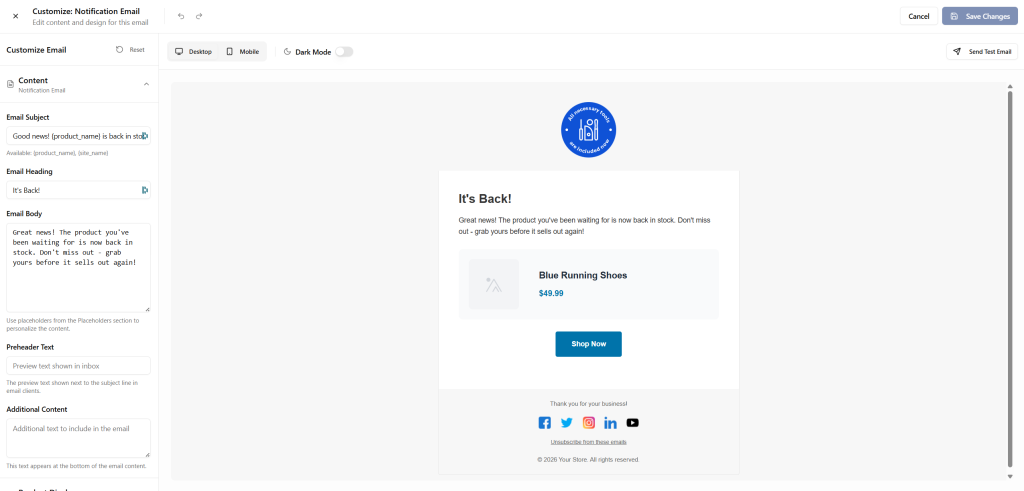
To learn how to use the Email Customizer, please follow the steps on: Email Customizer.
Subscriptions
View and manage all customer subscriptions:
| Column | Description |
|---|---|
| Subscriber’s email address | |
| Product | Product they subscribed to |
| Status | Active / Notified / Unsubscribed |
| Date | When they subscribed |
| Actions | Delete subscription |
*Bulk Actions (Pro):*
- Delete selected subscriptions
- Mark as notified
- Export to CSV
Sent Emails
View the log of all sent notifications:
| Column | Description |
|---|---|
| Recipient email address | |
| Product | Product that was restocked |
| Sent | Date/time notification was sent |
| Opened | Whether email was opened |
| Clicked | Whether they clicked the link |
| Purchased | Whether they made a purchase |
Analytics Tab (Pro) #
Track the performance of your Back In Stock notifications.
Stats Overview
| Metric | Description |
|---|---|
| Total Subscriptions | Total number of subscription requests |
| Active Subscriptions | Currently waiting for stock |
| Emails Sent | Total notifications sent |
| Conversion Rate | Percentage of notifications that led to purchases |
Period Selector
Filter analytics by time period:
- Last 7 days
- Last 30 days
- Last 90 days
Top Products by Subscriptions
See which products have the most subscription requests, helping you understand demand and prioritize restocking.
Recent Conversions
View customers who purchased after receiving a notification, including:
- Product purchased
- Customer email (masked for privacy)
- Time since purchase


