


In this guide
Explore the steps and reference sections below.
On this page
Follow up on eligible abandoned WooCommerce carts with timed emails and cart-restoration links. Free includes one reminder; Pro adds sequences, supported unpaid-order reminders, coupons and aggregate reports.
Overview
A customer can leave a cart without placing an order. Cart Recovery records eligible carts and uses an available email address to send a reminder after the configured inactivity threshold and email delay. It cannot email an anonymous visitor who has not supplied an address.
Whether a customer forgot to check out or left an order unpaid, Cart Recovery brings them back with well-timed, professionally designed emails that match your store’s branding through the built-in Email Customizer.
Key Capabilities
- Track abandoned carts for both logged-in customers and guests
- Send automated recovery email sequences with customizable timing
- One-click recovery links that rebuild the customer’s cart and redirect to checkout
- Built-in unsubscribe handling; configure your own privacy notice and contact permissions
- Full integration with the Email Customizer for consistent store branding
Getting Started
Step 1: Enable Cart Recovery
- Navigate to Swift Commerce → Sales Recovery → Cart Recovery
- Toggle the Enable Cart Recovery switch at the top of the page
- Click Save Changes
Step 2: Configure Tracking Settings
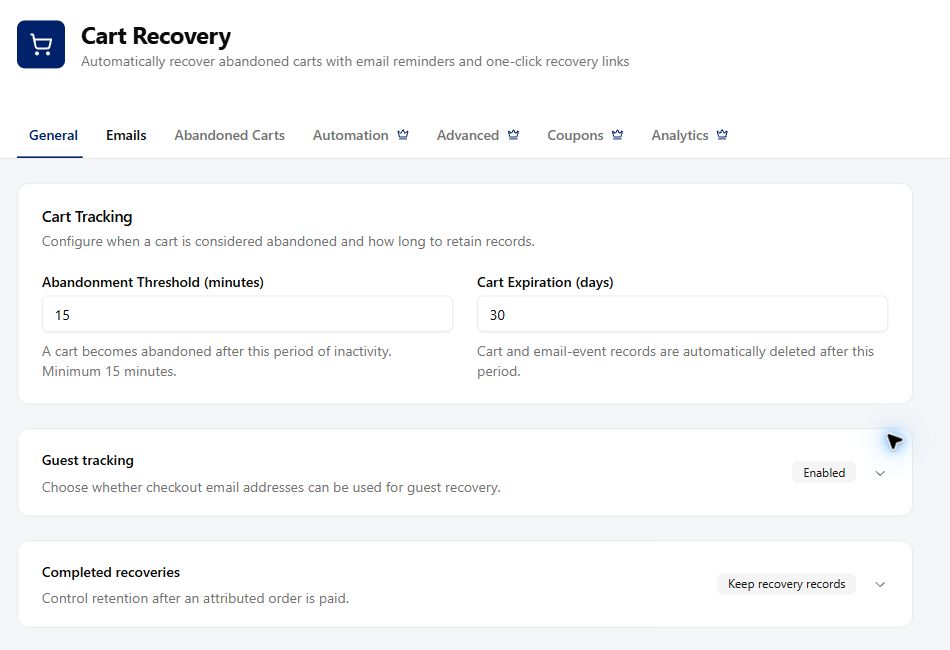
- Go to the General tab
- Set the Abandonment Threshold — the number of minutes of inactivity before a cart is flagged as abandoned (default: 60 minutes)
- Set the Cart Expiration — how many days to keep abandoned cart records before they’re automatically cleaned up (default: 30 days)
- Enable or disable Track Guest Carts to capture guest emails from the checkout billing field
Step 3: Set Up Your Recovery Email
- Go to the Emails tab
- Configure the subject line and delay timing for your first recovery email
- Click Customize Email to open the Email Customizer and personalize the heading, body text, product display options, and button text
- Use placeholders like
{customer_name},{site_name}, and{cart_total}to personalize the message - Click Save Changes
That’s it — Cart Recovery will now automatically track, detect, and email customers who abandon their carts.
Settings Reference
General Tab
Cart Tracking
| Setting | Description | Default |
|---|---|---|
| Abandonment Threshold | Minutes of inactivity before a cart is flagged as abandoned (15–1,440) | 60 minutes |
| Cart Expiration | Days before abandoned cart records are automatically deleted (1–365) | 30 days |
Guest Tracking
| Setting | Description | Default |
|---|---|---|
| Track Guest Carts | Capture guest emails from the checkout billing email field to enable recovery | Enabled |
Recovery
| Setting | Description | Default |
|---|---|---|
| Delete Cart on Recovery | Automatically delete the abandoned cart record when the customer completes their order. If disabled, recovered carts are kept for analytics. | Disabled |
Unpaid Order Recovery (Pro)
| Setting | Description | Default |
|---|---|---|
| Enable Unpaid Order Recovery | Send automated payment reminder emails for orders that remain unpaid | Disabled |
| Payment Timeout | Minutes to wait before sending the first payment reminder (15–10,080) | 60 minutes |
| Order Statuses to Track | Which order statuses trigger unpaid recovery: Pending Payment, Failed, On Hold | Pending, Failed |
Admin Recovery Notification (Pro)
| Setting | Description | Default |
|---|---|---|
| Enable Admin Notification | Send an email to the store admin whenever a cart is successfully recovered | Disabled |
| Notification Email | Admin email address to notify (defaults to the WordPress admin email if left blank) | WordPress admin email |
Exclude Roles from Tracking (Pro)
| Setting | Description | Default |
|---|---|---|
| Exclude Roles | Select user roles whose carts should not be tracked. Useful for excluding staff, editors, or other internal users. | None |
Emails Tab
Recovery Email Sequence
You can configure a sequence of follow-up emails sent to customers who abandon their carts.
- Free: 1 email
- Pro: Up to 5 emails with individual timing and subject lines
Each email in the sequence has:
| Setting | Description | Default (First Email) |
|---|---|---|
| Enabled | Toggle this email step on or off | Enabled |
| Subject Line | The email subject line — supports placeholders | “You left something in your cart!” |
| Delay | How long to wait before sending this email | 60 |
| Delay Unit | Minutes, Hours, or Days | Minutes |
The first email’s delay is measured from when the cart is flagged as abandoned. Subsequent emails are timed relative to the previous email in the sequence.
Tip: A common sequence is: 1 hour (first reminder), 24 hours (gentle nudge), 72 hours (final reminder with coupon).
Per-Email Coupon Controls (Pro)
Each email can optionally include an auto-generated coupon:
| Setting | Description | Default |
|---|---|---|
| Include Coupon | Attach a unique discount coupon to this email | Disabled |
| Discount Type | Percentage (%) or Fixed Amount ($) | Percentage |
| Amount | The discount value | 10 |
| Expiry (days) | How many days the coupon remains valid | 7 |
Note: Only the first email with a coupon enabled will generate one. Subsequent emails include the same coupon code to avoid creating multiple discounts for the same cart.
Email Template
Click Customize Email to open the full Email Customizer overlay where you can personalize:
| Setting | Description | Default |
|---|---|---|
| Heading | The email heading displayed above the body | “Your cart is waiting!” |
| Body Text | The main email message — supports placeholders | “Hi {customer_name},\n\nIt looks like you left some items in your cart at {site_name}. Your cart is saved and ready for you.” |
| Show Product Image | Display product thumbnail images in the cart summary | Enabled |
| Show Product Title | Display product names in the cart summary | Enabled |
| Show Product Price | Display prices in the cart summary | Enabled |
| Button Text | The call-to-action button label | “Complete Your Order” |
Unpaid Order Email Sequence (Pro)
When Unpaid Order Recovery is enabled, a separate email sequence appears with up to 5 payment reminder emails. These have the same controls (subject, delay, timing, coupon) tailored for payment reminders.
| Setting | Default (First Email) |
|---|---|
| Subject | “Complete your payment for order #{order_number}” |
| Heading | “Your order is waiting for payment” |
| Body Text | “Hi {customer_name},\n\nYour order #{order_number} at {site_name} is awaiting payment…” |
| Button Text | “Pay Now” |
Abandoned Carts Tab
View and manage all tracked abandoned carts in a searchable table.
Filters
- Status: All Statuses, Abandoned, Recovered, Unsubscribed
- Refresh: Reload the cart list
Table Columns
| Column | Description |
|---|---|
| Customer | Customer name (if logged in) and email address |
| Items | Number of items in the cart |
| Total | Cart total formatted with currency |
| Status | Abandoned (red), Recovered (green), Unsubscribed (gray), or Active (outline) |
| Emails | Number of recovery emails sent |
| Date | When the cart was created |
| Actions | Delete the cart record (with confirmation) |
Coupons Tab (Pro)
Configure global settings for auto-generated recovery coupons.
Coupon Code Settings
| Setting | Description | Default |
|---|---|---|
| Coupon Code Prefix | Prefix for generated coupon codes (e.g., recover-a1b2c3d4). Only lowercase letters, numbers, and hyphens. | “recover” |
| Individual Use Only | Prevent the coupon from being combined with other coupons | Enabled |
| Exclude Sale Items | Coupon won’t apply to items already on sale | Disabled |
Coupon Restrictions
| Setting | Description | Default |
|---|---|---|
| Minimum Spend | Minimum cart total required to use the coupon (0 = no minimum) | $0 |
| Allow Free Shipping | Grant free shipping when the coupon is applied | Disabled |
Auto-Managed Properties
These are automatically set by the system and cannot be changed:
- Usage limit: 1 per coupon (single-use)
- Email restriction: Locked to the recipient’s email address
- Expiry: Set per email in the Emails tab
- Discount type & amount: Set per email in the Emails tab
Coupon Display in Emails
Customize how the coupon appears inside recovery emails:
| Setting | Description | Default |
|---|---|---|
| Box Background Color | Background color of the coupon callout box | #f0fdf4 |
| Box Border Color | Border color of the coupon callout box | #bbf7d0 |
| Box Text Color | Text color inside the coupon callout box | #166534 |
| Code Background Color | Background color behind the coupon code itself | #dcfce7 |
| Message Text | The coupon message template (use {coupon_code} placeholder) | “Use code {coupon_code} at checkout for a special discount!” |
Analytics Tab (Pro)
Track your recovery performance with a real-time analytics dashboard.
Summary Cards
| Metric | Description |
|---|---|
| Total Abandoned | Number of carts flagged as abandoned |
| Total Recovered | Number of carts successfully recovered |
| Recovery Rate | Percentage of abandoned carts that were recovered |
| Revenue Recovered | Total monetary value of all recovered carts |
Email Performance
| Metric | Description |
|---|---|
| Emails Sent | Total recovery emails sent |
| Emails Opened | Number of emails opened by recipients |
| Links Clicked | Number of recovery links clicked |
| Open Rate | Percentage of emails opened |
| Click Rate | Percentage of emails where the recovery link was clicked |
Email Placeholders
Use these placeholders in your email subject lines and body text. They are automatically replaced with real data when the email is sent.
Cart Recovery Emails
| Placeholder | Description | Example |
|---|---|---|
{customer_name} | Customer’s first name (or “there” for guests) | John |
{customer_email} | Customer’s email address | [email protected] |
{cart_total} | Cart total with currency symbol | $149.99 |
{recovery_link} | Unique one-click cart recovery URL | https://store.com/?recover=abc123 |
{unsubscribe_link} | Opt-out link for recovery emails | https://store.com/?unsubscribe=abc123 |
{site_name} | Your website name | My Store |
{site_url} | Your website URL | https://mystore.com |
Unpaid Order Emails (Pro)
| Placeholder | Description | Example |
|---|---|---|
{customer_name} | Customer’s first name | John |
{customer_email} | Customer’s email address | [email protected] |
{order_number} | WooCommerce order number | #1042 |
{order_total} | Order total with currency | $149.99 |
{order_date} | Date the order was placed | Feb 24, 2026 |
{payment_link} | Direct link to the payment page | https://store.com/checkout/pay/1042/ |
{site_name} | Your website name | My Store |
{site_url} | Your website URL | https://mystore.com |
How Recovery Links Work
Each abandoned cart is assigned a unique recovery token. When a customer clicks the recovery link in their email:
- Their current cart is cleared
- The abandoned cart contents are restored (products, quantities, variations)
- If a coupon was included, it’s automatically applied
- The customer is redirected to the checkout page
- Once they complete the purchase, the cart is marked as Recovered
The recovery link replaces the current cart. Products must still be purchasable and in stock, and the current prices and checkout rules apply. The link can expire; a restored cart is not yet a recovered sale.
Unsubscribe Handling
Every recovery email includes an unsubscribe link in the email footer. When a customer clicks it:
- Their cart status changes to Unsubscribed
- Other active, abandoned or restored carts for the same email are stopped too, and later capture is suppressed
- A confirmation message is displayed to the customer
The unsubscribe link text and visibility can be configured in the Email Customizer under the Footer section:
| Setting | Description | Default |
|---|---|---|
| Unsubscribe Link | Toggle the unsubscribe link on or off in the email footer | Enabled |
| Unsubscribe Text | Customize the link text | “Unsubscribe from these emails” |
Current dashboard layout
In the current dashboard, General contains Cart Tracking, Guest tracking, and Completed recoveries. Emails contains the basic recovery email and template. Abandoned Carts is the review and search table. Pro adds separate Automation, Advanced, Coupons, and Analytics tabs. The Pro settings described earlier under General or Emails now appear in Automation or Advanced, not those Free tabs.
Automation (Pro)
Build a timed recovery email sequence for abandoned carts, with individual email content and timing. When unpaid-order recovery is enabled, configure a separate reminder sequence and template for pending, failed, or on-hold orders. Review the timing and any per-email coupon options before enabling the sequence, then test with a cart and an unpaid order you control.
Advanced (Pro)
- Unpaid order recovery: enable payment reminders for eligible pending, failed, or on-hold orders.
- Admin recovery notification: notify the store team when an attributed cart or unpaid order is recovered and paid.
- Exclude roles from tracking: avoid recording staff or other internal accounts.
- Recovery eligibility: set a minimum cart value before a cart is retained for recovery.
- Abandonment webhook: send an event to a configured endpoint when an eligible cart becomes abandoned. Treat the endpoint URL as a sensitive integration setting.
Analytics (Pro)
The report separates overview, email engagement, and coupon performance. Review abandoned versus recovered carts, attributed recovered revenue, recent activity, customer and product breakdowns, message opens/clicks, and generated coupon results. Empty states mean no data in the selected period; they do not by themselves indicate a sending failure.
When is the first reminder due?
The inactivity threshold and email delay are separate. If a cart is inactive for 60 minutes and the first reminder delay is 60 minutes, the reminder is due roughly two hours after the last activity, plus background-processing time. Pro’s later delays follow the preceding sent email. WordPress scheduled processing must run for due messages to be attempted.
Which customers can receive a reminder?
A tracked cart needs a valid, non-suppressed email address before a reminder can be sent. Signed-in customers can be associated with their account email. With guest tracking enabled, the checkout capture script listens for an entered email on supported classic and Block checkout forms. Confirm capture on your actual theme and checkout rather than assuming every visitor is contactable.
Capturing an email does not by itself establish permission to send marketing. Configure your privacy notice and contact permissions for your audience and review whether recovery follow-ups are appropriate for your store.
What do restored, ordered and recovered mean?
Restored means the recovery link rebuilt a cart. Ordered means that recovery-linked cart produced an order, which removes it from the cart-reminder queue. Recovered is attributed when the linked order is paid or reaches Processing or Completed. A pending order or an email click is not recovered revenue. Unrelated orders without the recovery attribution are not credited to the cart.
An unsubscribe suppresses the email address and stops its other recoverable carts. This is not a global unsubscribe from unrelated WooCommerce transactional order messages. Keep the recovery unsubscribe route accessible and test it with an address you control.
How should I read email performance?
A sent record means the mail system accepted the send request; it does not confirm inbox delivery. Open and click events are tracking signals and can be affected by privacy tools and automated scanners. Pro reports attributed recovered orders and revenue separately from email engagement. Check the selected date range and retention settings when interpreting totals.
Test one complete recovery before enabling follow-ups
- Use a test customer or guest email you control. Add an available product and enter the email at checkout; verify the tracked cart in Abandoned Carts.
- In Emails, configure the Free reminder and use Customize to review its supported Email Customizer content. In Pro, configure additional steps in Automation.
- Preview and send a test email. Separately let the test cart pass the inactivity threshold and delay to verify the scheduled recovery message.
- Open its recovery link and inspect the restored quantities, variations and current prices. Complete the test purchase and inspect the linked cart/order status.
- With a separate test address, use the unsubscribe route and verify that later recovery follow-ups stop. Never test by emailing real abandoned customers.
Follow how to customize recovery emails and compare Cart Recovery Free and Pro capabilities. A successful template test does not prove scheduled sending, restoration or attribution; test those separately.