Overview #
Swift Commerce Pro unlocks advanced features and premium functionality for your WooCommerce store. This guide explains how to install the Pro version after completing your purchase.
Before You Begin #
Make sure you have:
- ✓ An active Swift Commerce Pro license (purchased from swiftcommerce.io)
- ✓ The free Swift Commerce plugin already installed and activated
- ✓ Your license key or access to your purchase confirmation email
Method 1: Install from Your WordPress Dashboard (Recommended) #
The easiest way to upgrade to Pro is directly from your Swift Commerce dashboard.
Step 1: Access Swift Commerce Settings
- Log in to your WordPress admin dashboard
- Navigate to Swift Commerce → Settings
- Look for the Account or License section
Step 2: Upgrade to Pro
- Click the Upgrade to Pro or Activate License button
- You’ll be redirected to a secure checkout or license activation screen
- If you’ve already purchased, enter your license key
- Click Activate
Step 3: Download Pro Features
- Once activated, the Pro plugin will download automatically
- Wait for the installation to complete
- Your Pro features are now unlocked!
Method 2: Install from Purchase Email #
After purchasing Swift Commerce Pro, you’ll receive a confirmation email with download instructions.
Step 1: Locate Your Email
- Check your inbox for an email from Swift Commerce or Freemius
- Subject line will be similar to: “Your Swift Commerce Pro Purchase”
- Check your spam/junk folder if you don’t see it
Step 2: Download the Pro Plugin
- Click the Download link in the email
- Save the ZIP file to your computer (do not extract it)
- The file will be named something like
swift-commerce-pro.zip
Step 3: Upload to WordPress
- Log in to your WordPress admin dashboard
- Navigate to Plugins → Add New
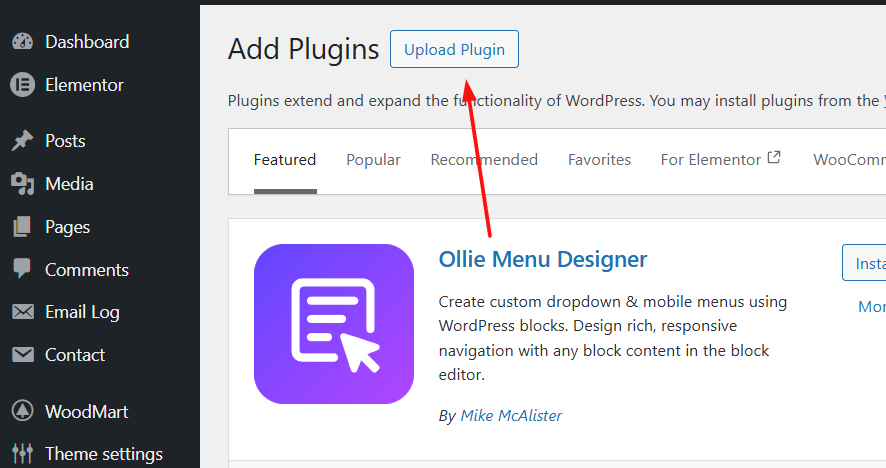
- Click the Upload Plugin button at the top
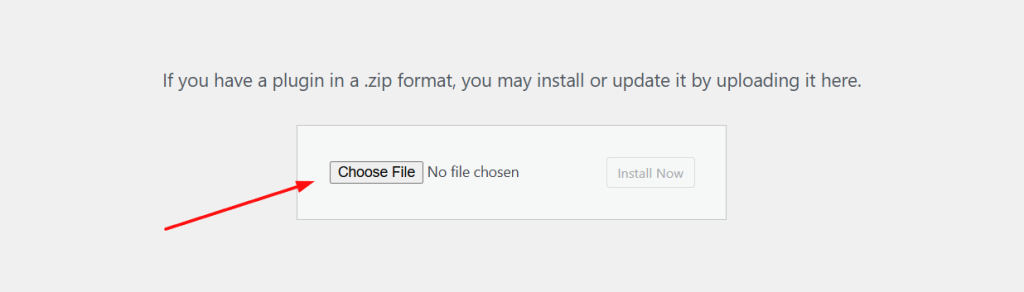
- Click Choose File and select the downloaded ZIP file
- Click Install Now
Step 4: Activate the Plugin
- Once uploaded, click Activate Plugin
- Swift Commerce Pro is now installed!
- You may be prompted to enter your license key—use the key from your purchase email
Method 3: Download from Your Account Portal #
You can always download the latest Pro version from your customer account.
Step 1: Log Into Your Account
- Visit swiftcommerce.io/account or the link in your purchase email
- Log in with the email address you used during purchase
- If this is your first time, click “Forgot Password” to set one up
Step 2: Download the Plugin
- Navigate to Downloads or My Purchases
- Find Swift Commerce Pro in your list
- Click the Download button to get the latest version
- Save the ZIP file to your computer
Step 3: Install the Plugin
- Follow the upload steps in Method 2 (Steps 3-4) above
- Activate and enter your license key when prompted