
Overview #
After purchasing Swift Commerce Pro, you need to activate your license to unlock all premium features. This guide walks you through the activation process step by step.
Where to Find Your License Key #
Your license key is available in two places:
1. Purchase Confirmation Email
After completing your purchase, you’ll receive an email containing:
- Your license key
- Download link for Swift Commerce Pro
- Link to your account portal
Check your spam folder if you don’t see this email within a few minutes.
2. Members Portal
- Visit swiftcommerce.io/members
- Log in with the email address you used during purchase
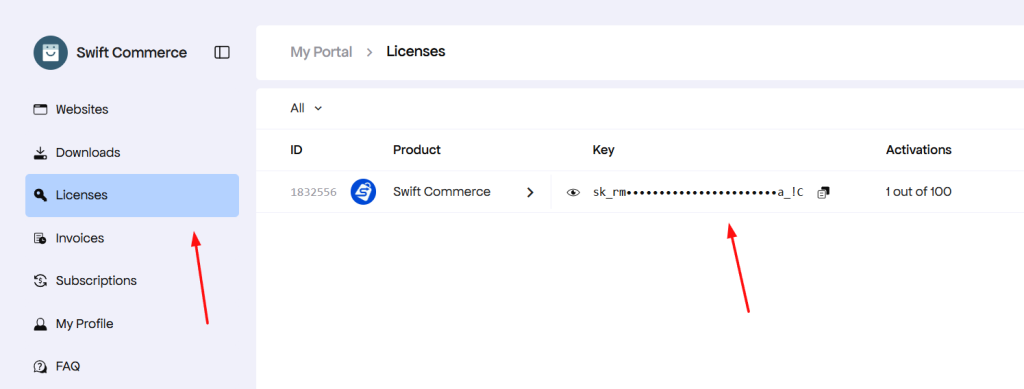
- Navigate to Licenses on the left sidebar
- Your license key will be displayed along with its status as shown in the screenshot
Activating Your License #
There are two ways to activate your Swift Commerce Pro license.
Method 1: Activate During Installation
When you first install and activate Swift Commerce Pro, you’ll be prompted to enter your license:
- After activating the Pro plugin, a license activation screen appears
- Enter your license key in the provided field
- Click Activate License or Agree & Activate
- Done! Your license is now active
Method 2: Activate from Plugin Settings
If you skipped the initial prompt or need to activate later:
- Log in to your WordPress Dashboard
- Navigate to Swift Commerce in the sidebar
- Click on Account (or look for the account/license option)
- Enter your license key in the activation field
- Click Activate License
- You’ll see a confirmation message when successful
Understanding Your License #
After activation, you can view your license details:
| Information | Description |
|---|---|
| License Status | Active, Expired, or Inactive |
| Plan Type | Your subscription tier (e.g., Personal, Business, Agency) |
| Valid Until | Expiration date for annual licenses |
| Sites Allowed | Number of sites your license covers |
| Sites Active | Number of sites currently using your license |
Managing Your License #
Viewing License Status
- Go to Swift Commerce → Account in your WordPress admin
- Your current license status is displayed
- You can see how many site activations you have remaining
Deactivating on a Site
If you need to move your license to a different website:
- Go to Swift Commerce → Account on the site you want to deactivate
- Click Deactivate License
- Confirm the deactivation
- Your license slot is now free to use on another site
Managing All Licenses
For a complete overview of all your licenses and activations:
- Visit swiftcommerce.io/members
- Log in to your account
- View all your purchases, licenses, and active sites
- Deactivate sites remotely if needed


