Overview #
If you’ve ever configured colors for your wishlist, then had to set the same colors again for your cookie banner, and again for your back-in-stock form, you know how tedious that gets. Global Styles solves this by letting you create a single set of design tokens that all features reference.
You set your brand palette and fonts once. From that point on, every Customize Design tab across Swift Commerce pulls from those shared values. Update your primary color later, and it flows through everywhere without you having to touch each feature individually.
Global Styles is available to Swift Commerce Pro users.
Requirements #
- Swift Commerce Free 1.3.0+
- Swift Commerce Pro 1.3.0+
- WooCommerce 8.0+
- WordPress 6.0+
Getting Started #
Step 1: Open Global Styles
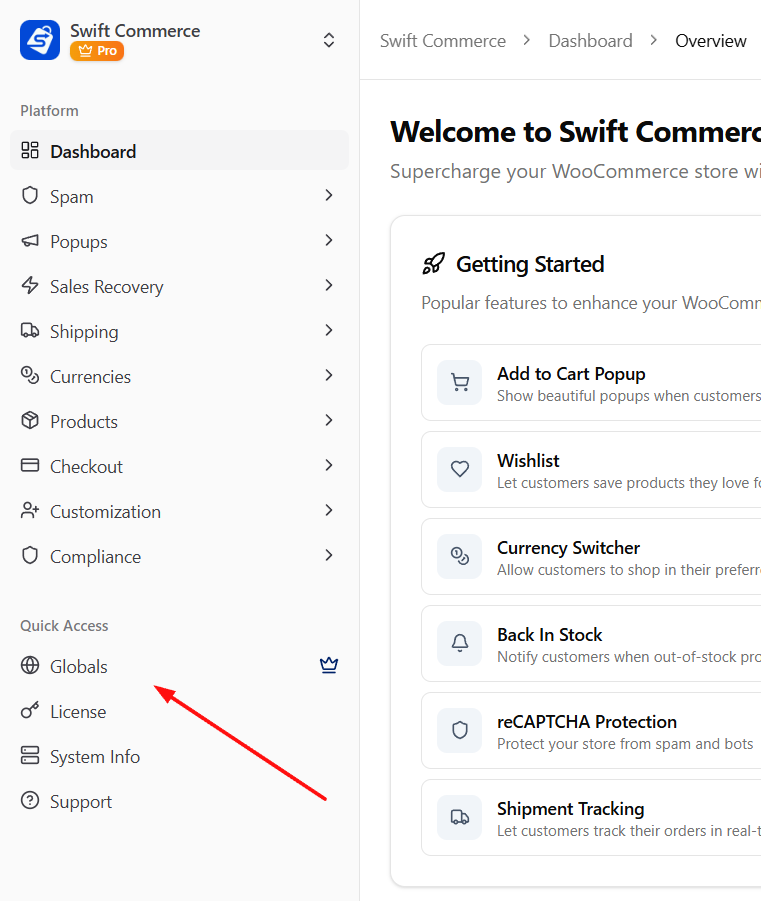
- Navigate to WordPress → Swift Commerce
- Click Globals in the sidebar navigation
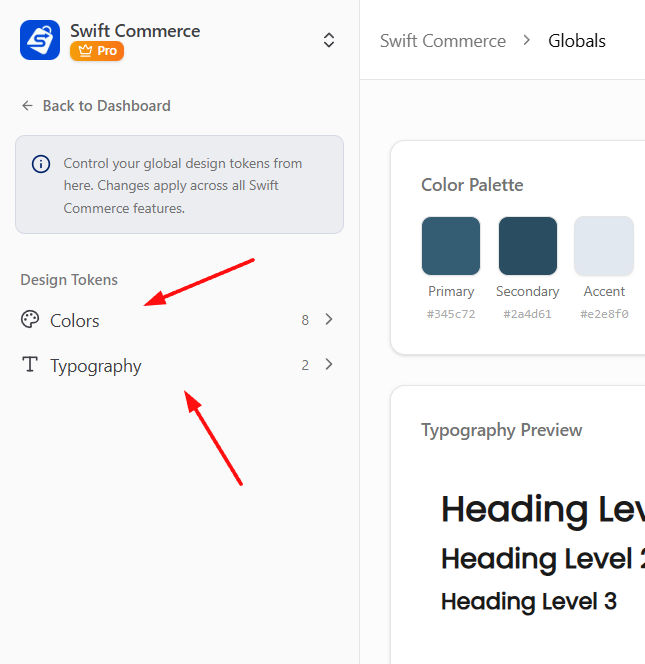
- You’ll see two sections to configure: Colors and Typography
Step 2: Set Up Your Colors
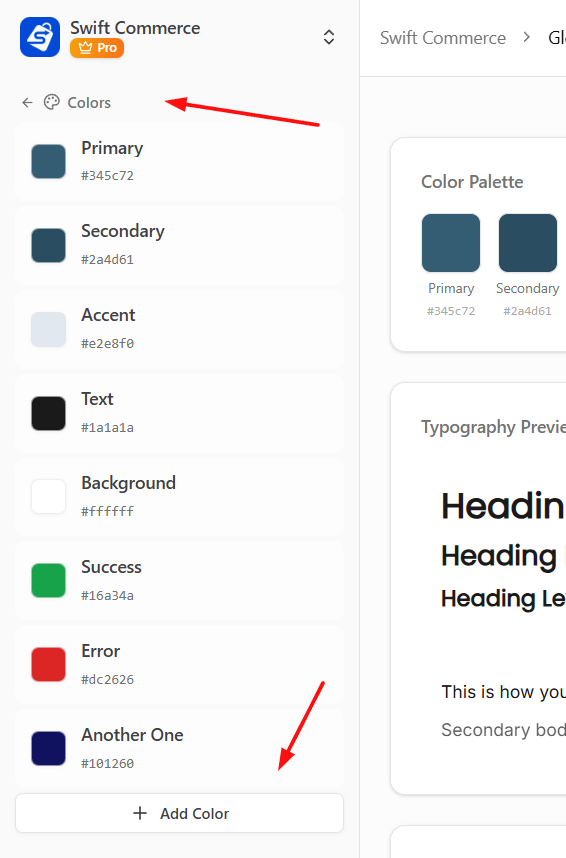
- Click Colors in the sidebar
- You’ll see your color palette listed as editable tokens
- Click any color row to expand its editor
- Change the name, pick a new color using the color picker, or type a hex value directly
- To add a brand color that isn’t in the defaults, click Add Color at the bottom
Step 3: Set Up Your Typography
- Click the back arrow to return to the main view, then click Typography
- You’ll see your typography presets listed
- Click any row to expand and configure the font family, weight, size, and other properties
- Use the font search to browse Google Fonts and preview them before selecting
- To add another typography preset, click Add Typography at the bottom
Step 4: Save Your Changes
- Click Save Changes in the sidebar footer
- Your global tokens are now active across all features
- Open any feature’s Customize Design tab and you’ll see your global colors and fonts available in the pickers
Colors #
Global Styles ships with seven default color tokens. You can change their values to match your brand, and you can add as many custom colors as you need.
Default Color Tokens
| Token | Default Value | Typical Use |
|---|---|---|
| Primary | #345c72 | Buttons, links, active states |
| Secondary | #2a4d61 | Hover states, secondary buttons |
| Accent | #e2e8f0 | Backgrounds, subtle highlights |
| Text | #1a1a1a | Headings, body copy |
| Background | #ffffff | Content areas, cards |
| Success | #16a34a | In-stock badges, confirmation messages |
| Error | #dc2626 | Out-of-stock badges, error messages |
You can rename any of these to fit your workflow. For example, you might rename “Accent” to “Light Gray” if that makes more sense for your team.
Adding Custom Colors
Click Add Color to create a new token. Give it a name like “Brand Purple” or “Sale Red” and pick your color. Custom tokens appear in the Global Color Picker across all features, right alongside the defaults.
Removing Colors
Default tokens can be edited but not deleted. Custom tokens you’ve added can be removed by expanding the row and clicking Remove.
Typography #
Global Styles includes two default typography presets. Like colors, you can customize them and add more.
Default Typography Presets
| Preset | Default Font | Default Weight | Purpose |
|---|---|---|---|
| Headings | Poppins | Semi Bold (600) | Feature titles, section headers, product names |
| Body Text | Inter | Regular (400) | Descriptions, form labels, notification messages |
Typography Settings
Each typography preset gives you control over the following properties:
| Setting | Description |
|---|---|
| Font Family | Choose from 120+ Google Fonts using the searchable dropdown. Fonts preview in real time so you can see what they look like before committing. |
| Font Weight | From Thin (100) to Black (900). Not all weights are available for every font. |
| Font Size | In pixels. Leave empty to inherit the default size from each feature. |
| Line Height | Controls the spacing between lines of text. A value of 1.5 or 1.6 works well for body copy. |
| Letter Spacing | Adjusts the space between characters. Most people leave this at the default. |
| Text Transform | None, Uppercase, Capitalize, or Lowercase. Useful for headings you want in all caps. |
Adding Custom Typography
Click Add Typography to create additional presets. You might add one for “Button Text” or “Small Print” depending on how granular you want your control to be.
Live Preview #
As you make changes in the sidebar, the main content area updates in real time with a live preview. The preview shows:
- Color Palette with all your color swatches displayed side by side
- Typography Preview with sample headings (H1, H2, H3) and body text rendered in your chosen fonts
- UI Components including buttons, badges, and a sample product card styled with your tokens
This lets you see exactly how your choices look together before saving.
How Global Styles Works With Features #
Every feature in Swift Commerce has its own Customize Design tab where you can fine-tune its appearance. When Global Styles is configured, two things change in those tabs:
- Global Color Picker appears in color fields, letting you select from your global palette instead of picking arbitrary hex values
- Global Typography Picker appears in font fields, letting you apply your global typography presets
The important thing to understand is that per-feature settings still take priority. If you set a specific color for your wishlist button, that color is used even if it differs from your global primary. Global Styles provides sensible defaults and convenient access to your brand tokens, but it never forces anything on individual features.
Resetting to Defaults #
If you want to start over, click Reset to Defaults in the sidebar footer. This restores the original seven color tokens and two typography presets. Note that you still need to click Save Changes after resetting for the changes to take effect.