
Verify user email addresses before allowing them to log in or complete checkout. This feature helps prevent fake accounts, reduces spam registrations, and ensures you can communicate with your customers.
Overview #
Email Verification requires users to confirm their email address by clicking a verification link sent to their inbox. Until verified, users cannot log in to your site or complete certain actions.
Key Benefits
- Eliminate fake accounts – Only real users with valid email addresses can register
- Reduce spam registrations – Bots can’t complete the verification process
- Improve deliverability – Verified emails mean fewer bounces when sending marketing emails
- Protect your store – Prevent fraudulent orders from unverified email addresses
- Build trust – Verified users are more engaged and trustworthy
Types of Verification:
Swift Commerce offers two types of user verification:
- Email Verification: Users can automatically verify their email by clicking a link inside the verification email sent to them. This is automatic.
- Manual Approval (Pro): The user can only register on your website while they wait for approval. This offers a more restrictive access to your website and you can manually approve or reject users based on your selection.
Getting Started #
Step 1: Enable Email Verification
- Navigate to Swift Commerce → Spam → Email Verification in your WordPress admin
- Choose between Email Verification or Admin Approval
- Select which registration forms should require verification
- Click Save Settings
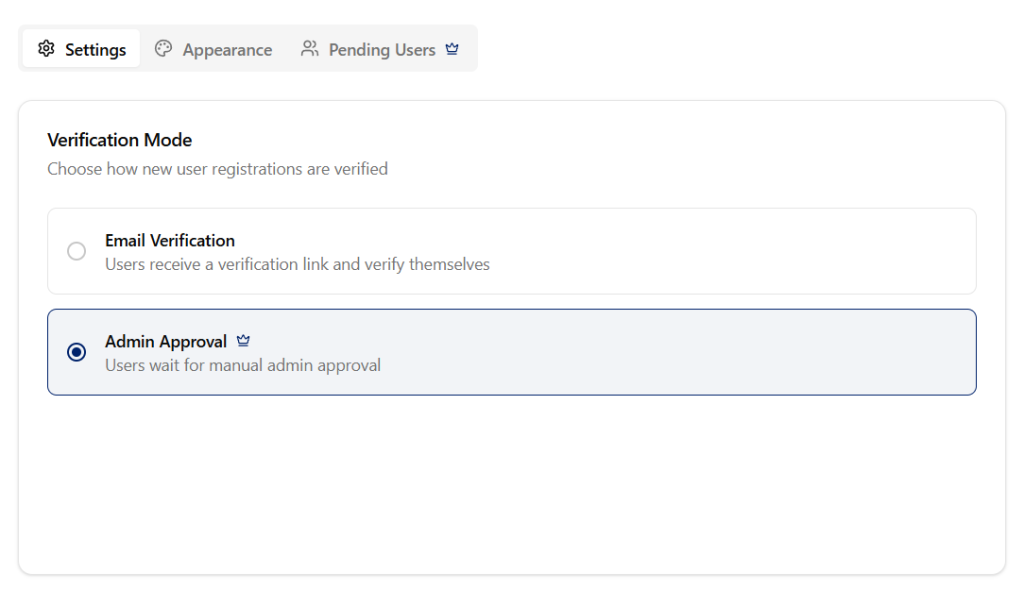
Step 2: Configure Verification Locations
Choose where email verification should be required:
- WordPress registration form
- WooCommerce My Account registration
- Guest checkout (Pro)
- Logged-in checkout (Pro)
Step 3: Customize the Email (Optional)
Personalise the verification email with your branding and messaging using the Appearance tab. There are 5 different types of emails that are sent to the user. All of these emails can be customized with Swift Commerce’s Email Customizer.
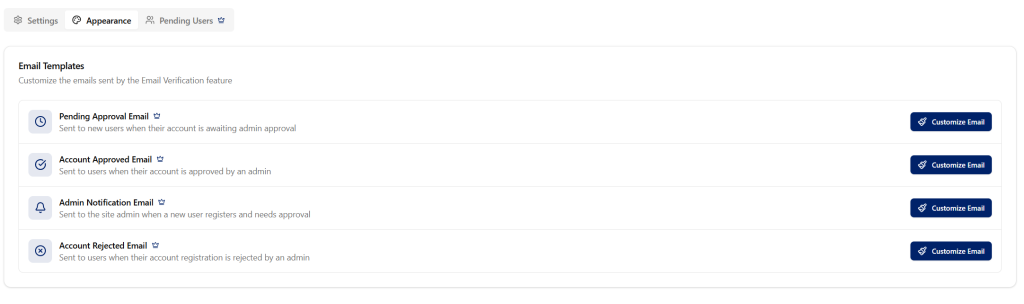
Settings Tab #
The Settings tab allows you to configure when and how email verification is required.
Verification Settings
| Location | Description | Version |
|---|---|---|
| WordPress Registration | Default WordPress registration form (wp-login.php?action=register) | Free |
| WooCommerce My Account | Registration form on the WooCommerce My Account page | Free |
| Guest Checkout | Require email verification before guest customers can complete checkout | Pro 🔒 |
| Logged-in Checkout | Require verified email for logged-in users at checkout | Pro 🔒 |
How Each Location Works
WordPress Registration
- User registers → Verification email sent → User must verify before logging in
- Login attempts show “Please verify your email” message
WooCommerce My Account
- User registers on My Account page → Verification email sent → Must verify before logging in
- Auto-login after registration is disabled
Guest Checkout (Pro)
- Guest enters email at checkout → Verification required → Order only processes after verification
- Prevents orders with fake email addresses
Logged-in Checkout (Pro)
- Customer with unverified email tries to checkout → Prompted to verify first
- Ensures all orders have valid contact emails
Skip Verification for Roles
Select user roles that should bypass email verification entirely.
| Role | Description |
|---|---|
| Administrator | Full site access (recommended to skip) |
| Editor | Can publish and manage all posts |
| Author | Can publish and manage own posts |
| Contributor | Can write but not publish posts |
| Subscriber | Can only manage their profile |
| Customer | WooCommerce customer role |
| Shop Manager | WooCommerce store manager |
💡 Tip: It’s recommended to skip verification for Administrator and Shop Manager roles to prevent lockout scenarios.
Link & Limits (Pro) 🔒
Available with Swift Commerce Pro
Verification Link Expiry
| Option | Description |
|---|---|
| 1 hour | Very short – for high-security scenarios |
| 3 hours | Short window |
| 6 hours | Half day |
| 12 hours | Moderate |
| 24 hours | Recommended default |
| 48 hours | Extended window |
| 72 hours | Maximum flexibility |
💡 Tip: 24 hours gives users enough time to check email while maintaining security. Shorter times are better for high-security sites.
Resend Email Limit
Control how many times users can request a new verification email.
| Option | Description |
|---|---|
| Unlimited | No restrictions on resending |
| 3 times | Recommended – prevents abuse |
| 5 times | More lenient |
| 10 times | Very lenient |
Auto-delete Unverified Users
Automatically remove users who never verify their email.
| Option | Description |
|---|---|
| Never | Keep unverified users indefinitely |
| 24 hours | Very aggressive cleanup |
| 48 hours | Aggressive cleanup |
| 72 hours | Moderate cleanup |
| 7 days | Recommended balance |
| 14 days | Lenient |
| 30 days | Maximum time before cleanup |
⚠️ Warning: Deleted users cannot be recovered. Choose a time period that gives legitimate users enough time to verify.


