
Protect your WordPress and WooCommerce site from bots, spam, and malicious attacks using Google reCAPTCHA, Cloudflare Turnstile or hCaptcha integration. This feature adds an extra layer of security to your forms by verifying that submissions come from real humans, not automated bots.
Overview #
reCAPTCHA is a free service from Google that protects your website from spam and abuse. Swift Commerce integrates seamlessly with Google reCAPTCHA, Cloudflare Turnstile and hCaptcha allowing you to choose the best option for your site.
Getting Started #
Prerequisites
Before enabling reCAPTCHA, you’ll need:
- A Google account/Cloudflare Account/hCaptcha
- reCAPTCHA API keys (Site Key and Secret Key)
- Swift Commerce plugin installed and activated
Step 1: Register Your Site with Google reCAPTCHA
- Go to the Google reCAPTCHA Admin Console
- Sign in with your Google account
- Fill in the registration form:
- Label: Enter a name to identify your site (e.g., “My Store”)
- reCAPTCHA type: Select either v2 or v3
- Domains: Add your website domain(s) without
http://orhttps://
- Accept the Terms of Service
- Click Submit
- Copy your Site Key and Secret Key
⚠️ Important: Keep your Secret Key confidential. Never share it publicly.
Step 2: Configure reCAPTCHA in Swift Commerce
- Navigate to Swift Commerce → Spam → reCAPTCHA in your WordPress admin
- Toggle the Enable reCAPTCHA switch to ON
- Select your reCAPTCHA version (v2 or v3)
- Enter your Site Key and Secret Key
- Choose which pages to protect
- Click Save Settings
General Tab #
The General tab contains the core configuration options for your reCAPTCHA setup.
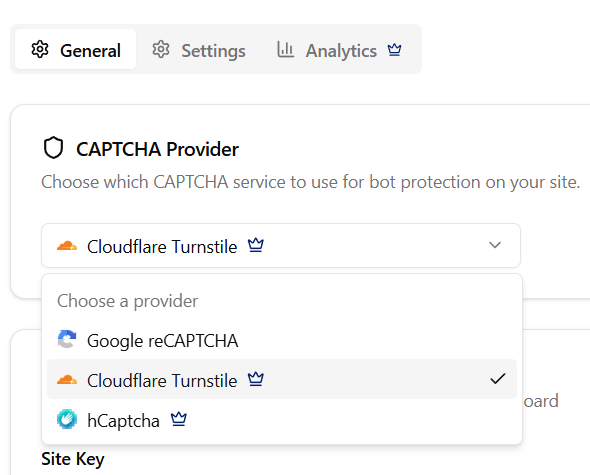
Select reCAPTCHA provider:
Swift Commerce enables users to choose the desired captcha they want to integrate into their website. Currently, Swift Commerce offer integrations for:
- Google reCAPTCHA (free)
- Cloudflare Turnstile
- hCaptcha
reCAPTCHA v2 Configuration
API Keys
| Field | Description |
|---|---|
| Site Key | The public key displayed on your website. Used to render the reCAPTCHA widget. |
| Secret Key | The private key for server-side verification. Never expose this publicly. |
Challenge Type
| Mode | Description | When to Use |
|---|---|---|
| “I’m not a robot” Checkbox | Displays a checkbox users must click. May present an image challenge if suspicious. | When you want users to actively confirm they’re human |
| Invisible | Runs in the background. Only shows a challenge if suspicious activity is detected. | When you want protection without interrupting user flow |
reCAPTCHA v3 Configuration
API Keys
| Field | Description |
|---|---|
| Site Key | The public key used to load the reCAPTCHA script on your site. |
| Secret Key | The private key for verifying scores server-side. |
Score Threshold
reCAPTCHA v3 returns a score between 0.0 and 1.0:
- 0.0 = Very likely a bot
- 1.0 = Very likely a human
| Threshold | Protection Level | False Positive Risk |
|---|---|---|
| 0.3 | Low | Very Low |
| 0.5 | Medium (Recommended) | Low |
| 0.7 | High | Medium |
| 0.9 | Very High | High |
💡 Tip: Start with 0.5 and adjust based on your needs. Lower if legitimate users are blocked; raise if spam gets through.
Badge Display
| Option | Description |
|---|---|
| Badge | Shows the reCAPTCHA badge in the bottom-right corner of protected pages |
| Hidden | Hides the badge completely |
⚠️ Legal Requirement: If you hide the badge, you must add this to your privacy policy:
“This site is protected by reCAPTCHA and the Google Privacy Policy and Terms of Service apply.”
Settings Tab #
Protected Pages (Free)
| Location | Description |
|---|---|
| WordPress Login | Admin login page (wp-login.php). Protects against brute force attacks. |
| WordPress Registration | Prevents spam account creation. |
| Lost Password Form | Blocks automated password reset abuse. |
| WooCommerce Login | Customer login on the My Account page. |
| WooCommerce Registration | Customer registration form. |
| Checkout Page | Protects orders from bot submissions. |
| Comment Forms | Prevents spam comments on blog posts. |
Protected Pages (Pro) 🔒
| Location | Description |
|---|---|
| Add Payment Method | When customers add a new card in My Account. |
| Product Reviews | WooCommerce product reviews on product pages. |
Appearance (Pro) 🔒
Customize how the reCAPTCHA v2 checkbox widget appears.
Theme
| Option | Description |
|---|---|
| Light | Standard light theme. Best for light-colored websites. |
| Dark | Dark theme. Best for dark-themed websites. |
Size
| Option | Description |
|---|---|
| Normal | Full-size widget (302 x 76 pixels) |
| Compact | Smaller widget for tight spaces (164 x 144 pixels) |
IP Whitelist (Pro) 🔒
Bypass reCAPTCHA for specific IP addresses. Useful for internal teams, automated systems, or development environments.
| Format | Example | Description |
|---|---|---|
| Single IP | 192.168.1.100 | Whitelist one IP address |
| CIDR Range | 10.0.0.0/24 | Whitelist a subnet |
| IP Range | 192.168.1.1-192.168.1.50 | Whitelist a range |
| Comment | # Office IP | Add documentation (ignored) |


