
The Product Bundles feature allows you to group multiple products together and sell them as a single unit at a discounted price. Bundles help increase average order value by encouraging customers to purchase complementary products together while enjoying savings.
Overview #
What are Product Bundles?
Product Bundles are collections of products sold together as one package. Customers add the entire bundle to their cart with a single click, and you can offer discounts on individual items or set a fixed bundle price.
Common use cases:
- Starter kits – Group essential products for beginners
- Gift sets – Curated collections for special occasions
- Frequently bought together – Bundle complementary items
- Value packs – Offer bulk savings on related products
- Seasonal collections – Holiday or themed product groups
Getting Started
- Navigate to Swift Commerce → Products → Product Bundles in your WordPress admin
- Configure global settings in the Settings tab
- Customize the appearance in the Customization tab
- Click Save Changes
- Create bundle products in Products → Add New by selecting “Product Bundle” as the product type
Creating a Product Bundle #
Product bundles are created directly in WooCommerce using a special product type.
Step 1: Create a New Product
- Go to Products → Add New in your WordPress admin
- Enter a Product name (e.g., “Complete Tech Bundle”)
- Add a Product description explaining what’s included
- Set a Product image that represents the bundle
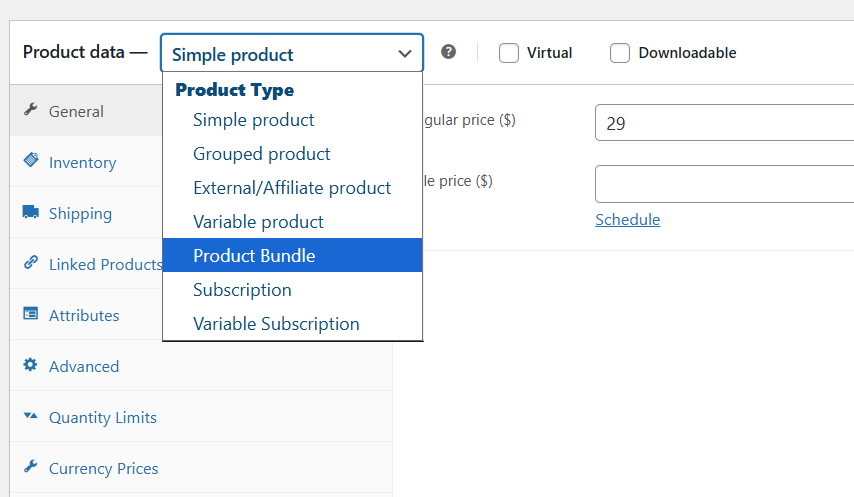
Step 2: Select Product Bundle Type
- Scroll down to the Product Data section
- Click the dropdown that says “Simple product”
- Select Product Bundle from the list
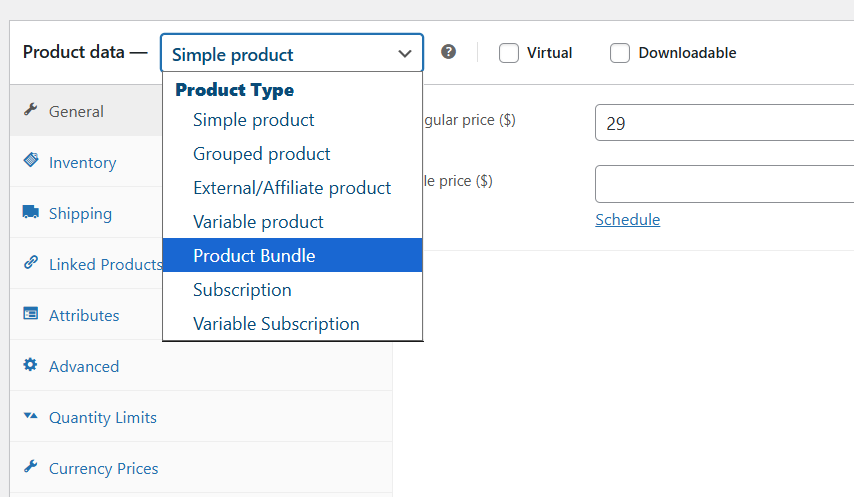
A new Bundle Items tab will appear in the product data panel.
Step 3: Configure Bundle Pricing
In the Bundle Items panel, you’ll see pricing options:
| Field | Description |
|---|---|
| Regular Price | The full price for the entire bundle. Leave empty to auto-calculate from items. |
| Sale Price | Optional discounted price for the bundle. |
Pricing Methods:
| Method | How It Works |
|---|---|
| Fixed Bundle Price | Enter a specific price for the entire bundle |
| Auto-Calculate | Leave price empty; the bundle price is calculated from items minus their discounts |
Step 4: Add Products to the Bundle
- In the Bundle Items section, use the search box to find products
- Type a product name and select it from the dropdown
- The product will be added to your bundle list
For each bundled item, you can configure:
| Option | Description |
|---|---|
| Quantity | Default quantity of this item in the bundle |
| Discount % | Percentage discount applied to this item |
| Custom Name | Override the product name displayed in the bundle (optional) |
Step 5: Arrange Bundle Items
- Drag and drop items to reorder them
- Click the trash icon to remove an item
- Click the arrow to expand/collapse item settings
Step 6: Publish the Bundle
- Review your bundle configuration
- Set the product status to Published
- Click Publish or Update
Your product bundle is now live and available for purchase!
Settings Tab #
The Settings tab contains global options that apply to all product bundles on your store.
Display Settings
Configure what information is shown for bundle items on the product page.
| Setting | Description | Default |
|---|---|---|
| Show Stock Status | Display stock availability for each bundled product | Enabled |
| Show Ratings | Display product ratings and review counts | Enabled |
| Show Out of Stock Items | Display items even when they are out of stock | Disabled |
| Show Price in Cart | Display individual item prices in the cart | Enabled |
| Show Savings Amount | Display how much money the customer saves | Enabled |
Product Link Behavior
Control how clicking on bundled product names or images behaves.
| Option | Description |
|---|---|
| No Link | Product names/images are not clickable |
| Same Tab | Opens the product page in the same browser tab |
| New Tab | Opens the product page in a new browser tab (recommended) |
Coupon Application
Configure how discount coupons interact with product bundles.
| Option | Description |
|---|---|
| On Bundle | Coupons apply to the entire bundle price only |
| On Bundle Items | Coupons apply to individual items within the bundle |
| On Both | Coupons can apply to either the bundle or items |
| None | Coupons are disabled for all bundles |
Pro Features
These advanced features are available with Swift Commerce Pro:
| Feature | Description |
|---|---|
| Variable Product Support | Add variable products to bundles with variation selection |
| Optional Bundle Items | Mark specific items as required or optional |
| Per-Item Quantity Limits | Set minimum and maximum quantity for each bundled item |
| Required Items Limit | Require a minimum/maximum number of items for checkout |
| Auto-Unavailable on Out of Stock | Automatically mark bundle as unavailable if any item is out of stock |
| Order/Invoice Price Display | Choose to show bundle price or individual item prices on orders |
Customization Tab #
The Customization tab lets you style how product bundles appear on your product pages.
Templates
Choose a pre-designed template to quickly style your bundles:
| Template | Description | Availability |
|---|---|---|
| Classic | Clean, professional look with subtle borders | Free |
| Modern | Bold colors with rounded corners | Pro |
| Minimal | Simple and elegant with no borders | Pro |
| Vibrant | Colorful and eye-catching design | Pro |
Item Styling
Customize the appearance of individual bundle items.
| Setting | Description |
|---|---|
| Show Item Borders | Add borders around each bundled product |
| Border Color | Color of the item borders |
| Border Radius | Corner roundness in pixels (0 = square, higher = rounder) |
| Item Spacing | Gap between items in pixels |
| Grid Columns | Number of columns in grid layout (2, 3, or 4) |
Quantity Controls
Configure quantity input for bundle items.
| Setting | Description |
|---|---|
| Show Quantity Controls | Allow customers to adjust item quantities |
| Input Style | Choose from Stepper (+/-), Dropdown, or Number Input |
Discount Badge
Display discount percentages on bundled items.
| Setting | Description |
|---|---|
| Show Discount Badge | Display a badge showing the discount percentage |
| Badge Position | Where the badge appears (Top Left, Top Right, Bottom Left, Bottom Right) |
| Badge Color | Background color of the discount badge |
| Text Color | Color of the text on the badge |
Savings Display
Show customers how much they save with the bundle.
| Setting | Description |
|---|---|
| Show Total Savings | Display the total amount customers save |
| Savings Position | Where savings appear (Above Button, Below Button, Inside Button) |
| Savings Color | Color of the savings text |
Add to Cart Button
Customize the bundle’s Add to Cart button.
| Setting | Description |
|---|---|
| Button Style | Default, Full Width, or Centered |
| Button Text | Custom text for the button (e.g., “Add Bundle to Cart”) |
| Button Color | Background color of the button |
| Text Color | Color of the button text |


