
The Subscriptions feature allows you to sell products with recurring payments in your WooCommerce store. Create subscription-based products that automatically charge customers on a regular schedule—whether weekly, monthly, or yearly. Customers can manage their subscriptions from their My Account page, including pausing, resuming, or canceling their plans.
Key Capabilities
- Recurring Payments: Automatically charge customers on a schedule (daily, weekly, monthly, or yearly)
- Sign-Up Fees: Charge a one-time fee when customers first subscribe
- Free Trials (Pro): Offer trial periods before the first payment
- Subscription Switching: Allow customers to upgrade or downgrade their plans
- Customer Self-Service: Customers can pause, cancel, or reactivate from their account
- Automatic Renewals: Works with payment gateways that support tokenization (Stripe, PayPal)
Getting Started: Creating a Subscription Product #
Follow these steps to create a subscription product from your WordPress admin:
Step 1: Create a New Product
- Go to Products → Add New in your WordPress dashboard
- Enter a Product Name (e.g., “Monthly Premium Plan”)
- Add a Product Description and Short Description
Step 2: Select Subscription Product Type
- In the Product data dropdown, select Subscription (or Variable Subscription for products with variations)
- You’ll see a new Subscription tab appear in the product data section
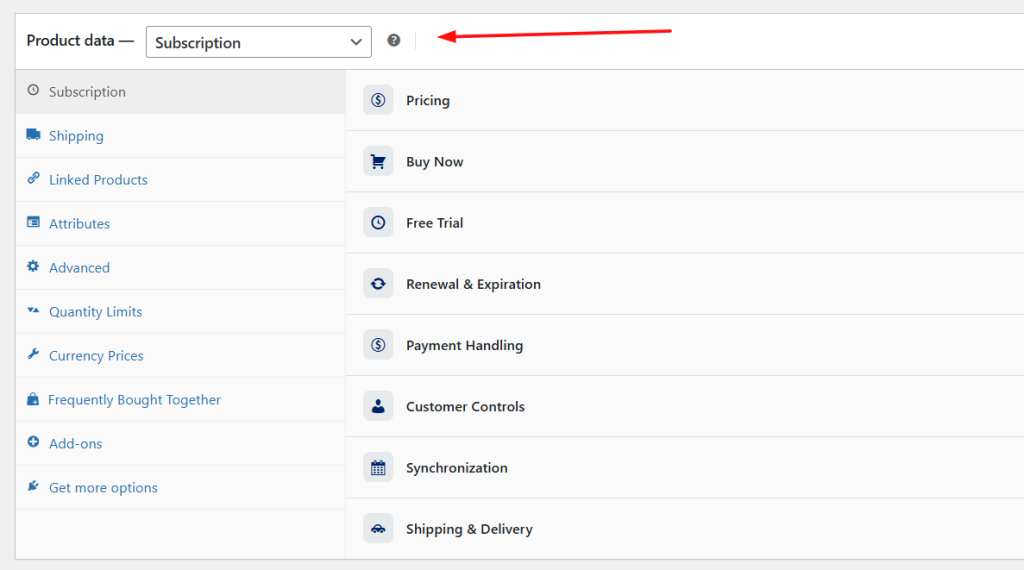
Step 3: Configure Subscription Settings
Click on the Subscription tab to configure:
| Setting | Description |
|---|---|
| Subscription Price | The recurring amount charged each billing cycle |
| Billing Interval | How often to charge (every 1, 2, 3, 4, 5, or 6 periods) |
| Billing Period | The unit of time: day(s), week(s), month(s), or year(s) |
| Subscription Length | Number of billing cycles before the subscription ends (or leave as “Never expire”) |
| Sign-up Fee | Optional one-time fee charged at checkout |
Step 4: Configure Shipping (Optional)
If you’re shipping physical products:
| Setting | Description |
|---|---|
| One-time Shipping | Only charge shipping at the start of the subscription |
| Shipping Frequency | Override shipping schedule (e.g., every 2nd renewal) |
Step 5: Publish Your Product
Click Publish to make your subscription product live on your store.
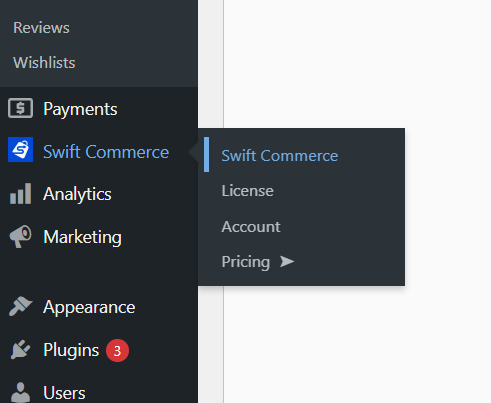
You can access the configuration of the Subscriptions inside the Swift Commerce Dashboard. Follow the steps below:
- Go to WordPress Dashboard
- Hover on Swift Commerce > Click on Swift Commerce
- Go to Products > Subscriptions
General Tab #
Configure core subscription behaviour settings.
General Settings
| Setting | Description | Default |
|---|---|---|
| Mixed Checkout | Allow subscription and non-subscription products in the same cart | Off |
| Allow Quantity Selection | Show quantity field on subscription products (hidden by default) | Off |
Subscription Switching
| Setting | Description | Default |
|---|---|---|
| Allow Plan Switching | Customers can upgrade or downgrade their subscription | On |
| Prorate Switching | How to handle payments when switching plans | Prorate payments |
Proration options:
- Prorate payments: Credit remaining value of current plan toward new plan
- No proration: Charge full price immediately for new plan
- Prorate virtual products only: Only prorate non-physical products
Synchronize Renewals (Pro)
Align all subscription renewals to a specific day of the month. This is useful for:
- Simplifying billing operations
- Processing all renewals on the same day
- Easier financial reporting
| Setting | Description | Default |
|---|---|---|
| Enable Synchronization | Align all renewals to a specific day | Off |
| Synchronization Day | The day of the month (1st through 28th) | 1st |
Payment Methods
Subscriptions require a payment gateway that supports recurring payments or tokenization. Compatible gateways include:
- Stripe (Credit Card)
- PayPal
- WooCommerce Payments
Note: For gateways that don’t support automatic payments, customers will receive a renewal reminder email and will need to pay manually.
Customer Tab #
Configure how customers can manage their own subscriptions.
Customer Self-Service
| Setting | Description | Default |
|---|---|---|
| Allow Subscription Pause | Customers can temporarily pause their subscription | On |
| Maximum Suspensions | Maximum times a customer can pause (0 = unlimited) | 3 |
| Allow Subscription Cancellation | Customers can cancel their subscription themselves | On |
Customers manage their subscriptions from My Account → Subscriptions on the frontend.
Early Renewal (Pro)
| Setting | Description | Default |
|---|---|---|
| Allow Early Renewal | Customers can renew before the scheduled date | On |
| Early Renewal Period | Days before renewal that early renewal is available | 7 days |
Customer Management Capabilities
When Pro is active, customers have access to additional management features:
| Feature | Description |
|---|---|
| View Subscription Details | See status, next payment date, and billing history |
| Update Payment Method | Change the payment method used for renewals |
| Manual Renewal | Pay for renewals manually from their account |
| Resume Subscription | Reactivate paused subscriptions |
Renewals Tab #
Configure automatic renewal processing and failed payment handling.
Failed Payment Handling (Pro)
| Setting | Description | Default |
|---|---|---|
| Failed Payment Action | What happens when a renewal payment fails | Put subscription on hold |
| Retry Failed Payments | Automatically retry failed payments | On |
| Retry Interval | Days between retry attempts | 3 days |
| Maximum Retries | Maximum number of retry attempts | 3 |
Failed Payment Action options:
- Put subscription on hold: Pause until payment is resolved
- Cancel subscription: End the subscription immediately
- Do nothing: Leave active and continue retrying
Force Renewal Button (Pro)
| Setting | Description | Default |
|---|---|---|
| Enable Renew Now Button | Show a “Renew Now” button for active subscriptions | Off |
This allows customers to trigger an immediate renewal from their account.
Auto-Suspend on Failed Payment (Pro)
| Setting | Description | Default |
|---|---|---|
| Auto-Suspend Access | Immediately suspend customer access when payment fails | Off |
| Auto-Restore on Payment | Automatically restore access when payment succeeds | Off |
Admin Tab #
Configure backend management capabilities for store administrators.
Create Subscriptions Manually (Pro)
| Setting | Description | Default |
|---|---|---|
| Enable Manual Creation | Allow admins to create subscriptions without customer checkout | Off |
This allows you to create subscriptions directly from the admin panel for special cases like:
- Phone orders
- Migrating existing subscribers
- Complimentary subscriptions
Delete Subscriptions
| Setting | Description | Default |
|---|---|---|
| Enable Subscription Deletion | Allow admins to permanently delete subscriptions | On |
Edit Subscription Details (Pro)
| Setting | Description | Default |
|---|---|---|
| Enable Subscription Editing | Edit renewal date, expiry, amount, and billing cycle | Off |
When enabled, administrators can modify:
- Next payment date
- End/expiry date
- Subscription total amount
- Billing period and interval
- Subscription status
Subscription Coupons (Pro)
| Setting | Description | Default |
|---|---|---|
| Enable Subscription Coupons | Create coupons for sign-up fees or recurring payments | Off |
Create special coupons that apply to:
- Sign-up fees only
- First X number of payments
- All recurring payments
Admin Email Notifications (Pro)
| Setting | Description |
|---|---|
| Expiring Subscription | Email admin when a subscription is about to expire |
| Cancelled Subscription | Email admin when a subscription is cancelled |
| Paused Subscription | Email admin when a customer pauses their subscription |
| Resumed Subscription | Email admin when a subscription is resumed |
| Payment Received | Email admin when a renewal payment is received |
Staging Mode (Pro)
| Setting | Description | Default |
|---|---|---|
| Auto-Staging Mode | Automatically detect staging environments and disable renewals | Off |
Prevents accidental charges when testing on staging or development sites.
Emails Tab #
Subscription events trigger automatic email notifications to customers and administrators.
Email Types
| Recipient | Description | |
|---|---|---|
| New Subscription | Admin | Sent when a new subscription is created |
| Subscription Activated | Customer | Sent when subscription becomes active |
| Subscription Cancelled | Customer | Sent when a subscription is cancelled |
| Subscription Expired | Customer | Sent when subscription reaches its end date |
| Subscription On-Hold | Customer | Sent when subscription is put on hold |
| Renewal Reminder | Customer | Sent before automatic renewal occurs |
| Payment Failed | Customer | Sent when a renewal payment fails |
| Payment Retry | Customer | Sent when payment is being retried |
Email templates can be customized in WooCommerce → Settings → Emails.
Customization Tab #
Customize the appearance of subscription products on your store.
Style Presets
Choose from pre-designed templates:
| Template | Description |
|---|---|
| Modern | Clean and contemporary with purple accents |
| Minimal | Simple and elegant with dark tones |
| Bold | Eye-catching and vibrant with red accents |
| Custom | Full control over all styling options |
Button Styling
| Setting | Description | Default |
|---|---|---|
| Button Background Color | The subscribe button color | #7c3aed (Purple) |
| Button Text Color | The button text color | #ffffff (White) |
| Button Border Radius | Button corner roundness | 8px |
| Font Size | Button text size | 14px |
| Font Weight | Button text weight | 600 (Semi-bold) |
| Padding | Button inner spacing | 12px |
Price Display
| Setting | Description | Default |
|---|---|---|
| Price Color | Main price text color | #111827 |
| Price Font Size | Main price size | 24px |
| Period Color | Billing period text color (e.g., “/ month”) | #6b7280 |
| Period Font Size | Billing period text size | 14px |
Sign-Up Fee & Trial Display
| Setting | Description | Default |
|---|---|---|
| Sign-Up Fee Color | Sign-up fee text color | #6b7280 |
| Sign-Up Fee Font Size | Sign-up fee text size | 14px |
| Trial Color | Free trial text color | #6b7280 |
| Trial Font Size | Free trial text size | 14px |
Container Styling
| Setting | Description | Default |
|---|---|---|
| Background Color | Container background | #ffffff |
| Border Color | Container border color | #e5e7eb |
| Border Radius | Container corner roundness | 12px |
| Padding | Container inner spacing | 24px |
Button Text
| Setting | Description | Default |
|---|---|---|
| Button Text | Text shown on single product page | “Sign Up Now” |
| Add to Cart Text | Text shown on shop/archive pages | “Subscribe” |
Managing Subscriptions in WooCommerce Admin #
Viewing All Subscriptions
Navigate to WooCommerce → Subscriptions to view all subscriptions in your store.
The subscriptions list shows:
- Subscription ID
- Customer name and email
- Product name
- Status (Active, On-Hold, Cancelled, Expired, Pending)
- Billing period (e.g., “Every month”)
- Next payment date
- Total amount
You can filter subscriptions by:
- Status: Active, On-Hold, Cancelled, Expired, Pending
- Search: By subscription ID, customer name, or product name
Subscription Statuses
| Status | Description |
|---|---|
| Active | Subscription is running and payments are being processed |
| Pending | Waiting for initial payment to complete |
| On-Hold | Temporarily paused (by customer or admin) |
| Cancelled | Subscription has been cancelled |
| Expired | Subscription reached its end date |
| Pending-Cancel | Scheduled to cancel at end of current period |
Single Subscription View
Click on any subscription to view full details:
- Customer Information: Name, email, and link to customer profile
- Product Details: Subscription product with link to edit
- Billing Information: Amount, period, interval
- Important Dates: Start date, next payment, last payment, end date
- Payment Method: Gateway used for renewals
- Subscription History: Log of status changes and events
Available Actions
From the subscription detail page, administrators can:
| Action | Description |
|---|---|
| Activate | Reactivate a paused or on-hold subscription |
| Suspend | Put subscription on hold temporarily |
| Cancel | End the subscription |
| Reactivate | Restore a cancelled subscription |
| Edit Details (Pro) | Modify dates, amounts, and billing cycle |
Order Integration
When viewing an order that contains subscription products:
- A Subscriptions metabox appears on the order page
- Shows linked subscriptions with their current status
- Quick link to view full subscription details
If an order contains subscription products but subscriptions weren’t created (e.g., failed order), you can use Order Actions → Create subscriptions from order to manually create them.
Pro Features (Product-Level) #
When editing a subscription product with Swift Commerce Pro, you’ll see additional sections:
Free Trial
| Setting | Description |
|---|---|
| Trial Length | Number of trial periods (0 = no trial) |
| Trial Period | Time unit: day(s), week(s), month(s), year(s) |
| Require Payment Method | Require customers to enter payment details during trial |
Renewal & Expiration
| Setting | Description |
|---|---|
| Renewal Reminder | Days before renewal to send reminder email |
| Grace Period | Days to allow payment after failed renewal |
| On Expiration | Action when subscription ends: Expire, Cancel, or Notify only |
Customer Controls (Product-Level)
| Setting | Description |
|---|---|
| Allow Pause | Override global setting for this product |
| Allow Switching | Allow switching to/from this subscription |
| Purchase Limit | Limit purchases per customer (One per account, etc.) |
| Resubscribe Option | Allow cancelled subscribers to resubscribe |
Synchronization
| Setting | Description |
|---|---|
| Sync to Day | Align renewals to specific day of week/month |
| Prorate First Payment | Calculate first payment based on remaining time |


